

If you have a YouTube playlist with dozens or hundreds of videos, finding the total watch time manually can be a pain. YouTube does not give you one simple number showing how long the entire playlist will take to watch.
The easiest way is to use a YouTube playlist length calculator. It can read the playlist, collect the available video information, add the individual video durations, and show the total YouTube playlist duration in one result.
This is especially useful for long study playlists, certification courses, programming courses, music collections, and training series.
Quick answer: How do you find the total watch time of a YouTube playlist?
Copy the URL of the YouTube playlist and paste it into a YouTube Playlist Length Calculator. The calculator reads the publicly available playlist and video information, adds the video durations, and gives you the total playlist watch time.
With ViewToolz, you can also see the estimated watch time at different playback speeds, check unavailable videos, compare up to 5 playlists, and export the results in multiple formats.
For example, a playlist with 20 hours of original content would take approximately:
| Playback speed | Approximate watch time |
|---|---|
| 1x | 20 hours |
| 1.25x | 16 hours |
| 1.5x | 13 hours 20 minutes |
| 1.75x | 11 hours 26 minutes |
| 2x | 10 hours |
The exact result depends on the individual videos in the playlist.
What you need before calculating a playlist's watch time
You only need the YouTube playlist URL.
A normal playlist URL looks like:
<span className="text-[#188038] dark:text-[#4ADE80] font-semibold">youtube.com/playlist?list=PLAYLIST_ID</span>YouTube's own help documentation recommends copying the URL from the playlist page and checking that the URL contains
<span className="text-[#188038] dark:text-[#4ADE80] font-semibold">/playlist?list=</span> rather than sharing only an individual video URL.How to calculate YouTube playlist watch time
Step 1: Open the playlist
Open the YouTube playlist you want to measure.
It could be a course, training series, music playlist, interview collection, or any other playlist that you want to finish.
Step 2: Copy the playlist URL
Copy the full URL from your browser.
Make sure you are copying the playlist link, not just the URL of one video inside the playlist.

Copy the full YouTube playlist URL from the browser address bar
Step 3: Paste the URL into ViewToolz
Open the YouTube Playlist Length Calculator and paste the URL into the input box.
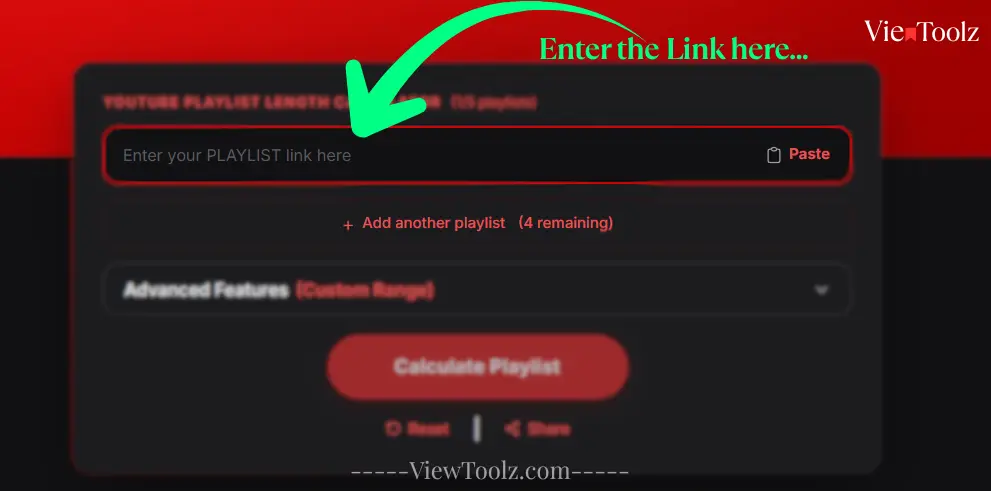
Paste the YouTube playlist URL into ViewToolz to start calculating the total watch time
Step 4: Calculate the playlist
Click the calculate button.
ViewToolz retrieves the available playlist and video information and calculates the combined duration.
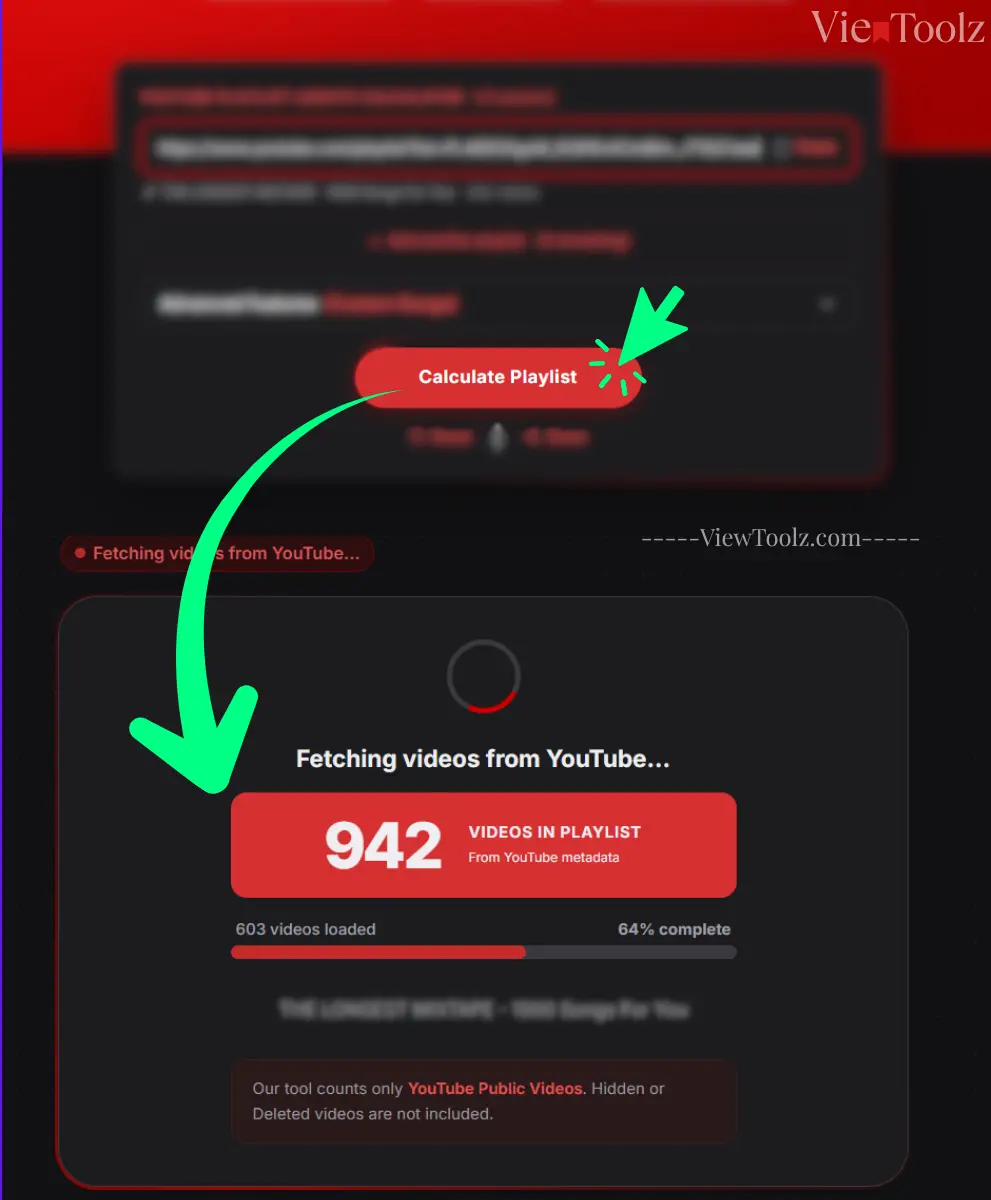
Click the Calculate button to process playlist videos
Step 5: Check the result
The result page can show information such as:
- Total playlist watch time
- Number of videos
- Missing or unavailable videos
- Average video length
- Total views
- Playback-speed estimates
- Daily watch planning
- Playlist comparison data
- Export options
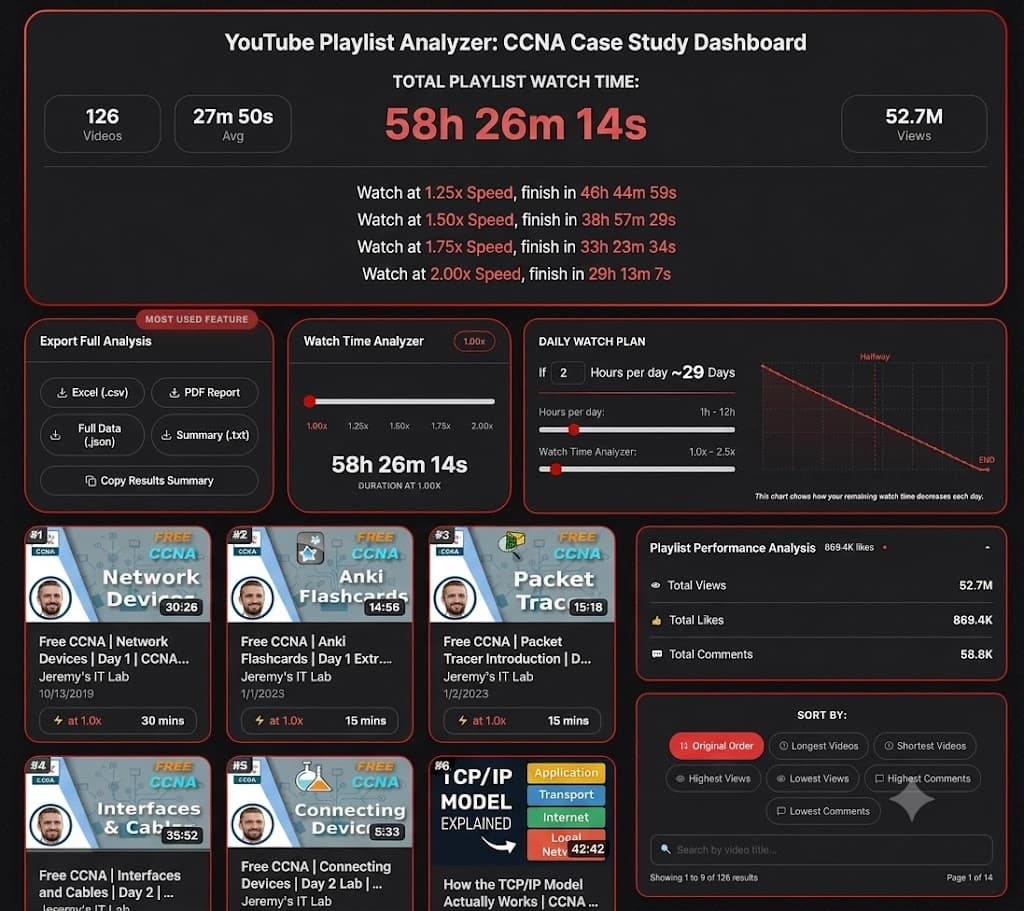
ViewToolz shows the calculated YouTube playlist duration together with additional playlist statistics
How is YouTube playlist duration calculated?
The basic calculation is simple:
Total playlist watch time = duration of Video 1 + Video 2 + Video 3 + ...For example, imagine a playlist contains five videos:
| Video | Duration |
|---|---|
| Video 1 | 30 minutes |
| Video 2 | 45 minutes |
| Video 3 | 1 hour |
| Video 4 | 25 minutes |
| Video 5 | 40 minutes |
| Total | 3 hours 20 minutes |
Doing this manually for five videos is easy.
Doing it for 100, 500, or thousands of videos is a completely different task.
That is where an automated playlist duration calculator becomes useful.
How ViewToolz gets the playlist data
ViewToolz uses the official YouTube Data API v3 to retrieve YouTube playlist and video information.
The API provides a
<span className="text-[#188038] dark:text-[#4ADE80] font-semibold">playlistItems</span> resource for items contained in a playlist, including the video ID associated with each playlist item. YouTube's API also provides video resources containing information such as video metadata and duration.ViewToolz uses this information to build the playlist calculation rather than asking you to enter every video manually.
This matters for large playlists because the calculation depends on the actual videos available in the playlist when the data is collected.
Data source: Official YouTube Data API v3
Data accuracy
The result represents the publicly available YouTube data that could be retrieved when the playlist was analyzed.
A playlist can change later. The creator may add videos, remove videos, replace videos, or change their visibility.
Why can the total playlist time change?
A YouTube playlist is not a fixed document.
It can change over time.
A creator might add a new lesson today and remove an old lesson next month. A video that was available when you calculated the playlist could also become unavailable later.
YouTube supports different playlist visibility settings, including public, private, and unlisted playlists. Public playlists can be watched and shared by anyone, while access to private content is restricted.
This is why a playlist that showed 40 hours last month might not show exactly 40 hours when you calculate it again.
What happens when a playlist contains unavailable videos?
This is one of the most important things to understand when calculating playlist duration.
A playlist may contain videos that are no longer publicly available.
For example:
- A creator deleted a video.
- A video was made private.
- A video is no longer accessible.
- A playlist item points to content that cannot provide usable duration information.
YouTube documents that private videos are not publicly visible, while unlisted videos can be accessed by people who have the link.
Because a calculator cannot calculate the duration of a video when the required information is unavailable, those videos should not simply be treated as if they have zero minutes.
A good calculator should tell you that something is missing.
How much time can you save by watching at a faster speed?
Playback speed can make a large difference when you're watching long educational playlists.
The basic calculation is:
Adjusted watch time = original watch time ÷ playback speedFor example, if a playlist is 30 hours long:
| Playback speed | Approximate time |
|---|---|
| 1x | 30 hours |
| 1.25x | 24 hours |
| 1.5x | 20 hours |
| 1.75x | 17 hours 9 minutes |
| 2x | 15 hours |
This doesn't mean every person should watch every type of video at 2x. A fast speed may work well for familiar material, while difficult technical lessons may require a slower speed or pauses.
The useful part is knowing how much time is available at each speed so you can choose what works for you.
Viewtoolz supports custom playback speed options too. You can manually adjust the speeds using manual speed bar.
Example: planning a long YouTube course
Imagine you're preparing for a certification and find a YouTube playlist containing 60 hours of lessons.
At normal speed, you need 60 hours of viewing time.
But if you can comfortably watch the material at 1.5x:
60 ÷ 1.5 = 40 hoursIf you study for two hours every day:
40 ÷ 2 = 20 daysThat gives you a much clearer study plan than simply knowing that the playlist contains hundreds of videos.
You can use the same approach for:
- AWS courses
- CCNA training
- Python courses
- JavaScript courses
- Kubernetes training
- University lectures
- Programming bootcamps
- Interview preparation
- Professional training
What else can you learn from a YouTube playlist?
Playlist duration is only one useful measurement.
Depending on the available data, a detailed playlist analysis can also help you understand:
| Information | Why it matters |
|---|---|
| Total videos | Shows the size of the playlist |
| Total duration | Shows the full watch time |
| Average video length | Shows whether the playlist uses short or long videos |
| Playback estimates | Helps create a viewing plan |
| Total views | Gives a high-level view of audience activity |
| Missing videos | Shows whether some content could not be included |
| Daily watch plan | Helps estimate completion time |
| Playlist comparison | Lets you compare courses or collections |
| Exported data | Makes further analysis easier |
Can you compare multiple YouTube playlists?
Yes.
This is particularly useful when you're choosing between different courses.
For example, instead of asking:
"Which CCNA course looks better?"
you can compare factors such as:
- Number of videos
- Total watch time
- Average video length
- Playback time
- Publicly available videos
- Other available playlist metrics
ViewToolz supports comparison of up to 5 playlists.
That makes it possible to compare several courses before committing dozens of hours to one of them.
Can you export the playlist results?
If you're doing more than simply checking the watch time, exporting the results can be useful.
ViewToolz provides several export options:
- CSV
- JSON
- TXT summary
- Copy results summary
This can be useful if you're researching multiple courses, keeping study records, or working with playlist data outside the calculator.
How many videos can a YouTube playlist calculator check?
This is an important difference between playlist calculators.
Some tools may not process an entire large playlist in one calculation.
ViewToolz is designed to support playlists with up to 5,000 videos.
That makes large playlists particularly interesting for analysis because you don't have to assume that the first few hundred videos represent the whole playlist.
For example, a playlist containing 5,000 videos can have a very different total watch time from a calculation based on only the first 500.
Why you should record the date when using playlist data
If you're only checking a playlist for yourself, the date may not matter much.
But if you're publishing a comparison, writing a research report, or using the numbers to make a decision, the date is important.
For example:
Playlist data collected: August 7, 2026
A reader can then understand that the numbers describe the playlist as it existed on that date.
This is especially important for large courses and music playlists that are updated regularly.
If the creator adds 20 videos a month later, the total duration will naturally change.
Frequently asked questions
How do I calculate the total time of a YouTube playlist?
Copy the playlist URL and use a YouTube playlist length calculator. The calculator can retrieve the available video information and add the individual durations to calculate the total watch time.
What is the easiest way to find YouTube playlist duration?
Using a playlist duration calculator is easier than manually adding every video's length, especially for playlists containing dozens or hundreds of videos.
Can I calculate a YouTube playlist with hundreds of videos?
Yes. A calculator can automate the process of collecting and adding video durations. ViewToolz supports playlists with up to 5,000 videos.
Does playback speed change the actual playlist duration?
No. The original duration of the videos does not change. Playback speed changes the amount of time you need to spend watching them.
How much shorter is a playlist at 2x speed?
At 2x speed, the viewing time is approximately half of the original duration. For example, a 20-hour playlist takes about 10 hours at 2x.
Why are some videos missing from my playlist calculation?
A playlist may contain videos that are no longer publicly available or whose required information cannot be retrieved. Those videos cannot be included in the calculated duration.
Can I compare multiple YouTube playlists?
Yes. ViewToolz supports comparing up to five playlists, allowing you to compare their available duration and playlist information.
Can I export my playlist results?
Yes. ViewToolz provides CSV, PDF, JSON, TXT summary, and copy-summary options.
Does YouTube provide playlist duration through its API?
The YouTube Data API v3 provides playlist and video resources that can be used to retrieve playlist items and video information. Video resources include content details such as duration.
Can a playlist's total watch time change?
Yes. Playlist contents can change when videos are added, removed, or become unavailable. For research or published comparisons, record the date when the data was collected.
Methodology
This guide explains playlist duration using publicly available YouTube playlist and video information.
ViewToolz uses the official YouTube Data API v3 to retrieve playlist and video information used in its calculations. YouTube's API provides methods for retrieving playlist items and video resources, including video duration information.
For research articles and playlist comparisons, the recommended practice is to record the date on which the playlist was analyzed.
Data collection date for this guide: August 7, 2026.
Playlist information can change after that date. If a creator adds, removes, or changes videos, a later calculation may produce different results.
Calculate your YouTube playlist watch time
You don't need to manually add hundreds of video durations.
Copy your YouTube playlist URL, paste it into ViewToolz, and calculate the total duration.
You can then check playback-speed estimates, identify unavailable videos, compare playlists, create a viewing plan, and export your results.
Try the free YouTube Playlist Length Calculator - No login is required.